MVG Overview • Drawing Primitives
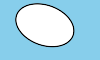
This specification defines the features and syntax for Magick Vector Graphics (MVG), a modularized language for describing two-dimensional vector and mixed vector/raster graphics in ImageMagick. You can use the language to draw from the command line, from an MVG file, from an SVG -- Scalable Vector Graphics file or from one of the ImageMagick program interfaces. Use this command, for example, to render an arc:
magick -size 100x60 canvas:skyblue -fill white -stroke black \
  -draw "path 'M 30,40  A 30,20  20  0,0 70,20 A 30,20  20  1,0 30,40 Z '" \
  arc.png
and here is the result:
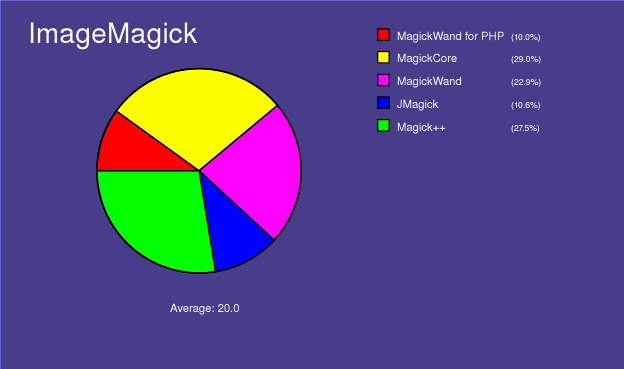
When the drawing gets sufficiently complex, we recommend you assemble the graphic primitives into a MVG file. For our example, we use piechart.mvg:
push graphic-context
  viewbox 0 0 624 369
  affine 0.283636 0 0 0.283846 -0 -0
  push graphic-context
    push graphic-context
      fill 'darkslateblue'
      stroke 'blue'
      stroke-width 1
      rectangle 1,1 2199,1299
    pop graphic-context
    push graphic-context
      font-size 40
      fill 'white'
      stroke-width 1
      text 600,1100 'Average: 20.0'
    pop graphic-context
    push graphic-context
      fill 'red'
      stroke 'black'
      stroke-width 5
      path 'M700.0,600.0 L340.0,600.0 A360.0,360.0 0 0,1 408.1452123287954,389.2376150414973 z'
    pop graphic-context
    push graphic-context
      font-size 40
      fill 'white'
      stroke-width 1
      text 1400,140 'MagickWand for PHP'
    pop graphic-context
    push graphic-context
      font-size 30
      fill 'white'
      stroke-width 1
      text 1800,140 '(10.0%)'
    pop graphic-context
    push graphic-context
      fill 'red'
      stroke 'black'
      stroke-width 4
      rectangle 1330,100 1370,140
    pop graphic-context
    push graphic-context
      fill 'yellow'
      stroke 'black'
      stroke-width 5
      path 'M700.0,600.0 L408.1452123287954,389.2376150414973 A360.0,360.0 0 0,1 976.5894480359858,369.56936567559273 z'
    pop graphic-context
    push graphic-context
      font-size 40
      fill 'white'
      stroke-width 1
      text 1400,220 'MagickCore'
    pop graphic-context
    push graphic-context
      font-size 30
      fill 'white'
      stroke-width 1
      text 1800,220 '(29.0%)'
    pop graphic-context
    push graphic-context
      fill 'yellow'
      stroke 'black'
      stroke-width 4
      rectangle 1330,180 1370,220
    pop graphic-context
    push graphic-context
      fill 'fuchsia'
      stroke 'black'
      stroke-width 5
      path 'M700.0,600.0 L976.5894480359858,369.56936567559273 A360.0,360.0 0 0,1 964.2680466142854,844.4634932636567 z'
    pop graphic-context
    push graphic-context
      font-size 40
      fill 'white'
      stroke-width 1
      text 1400,300 'MagickWand'
    pop graphic-context
    push graphic-context
      font-size 30
      fill 'white'
      stroke-width 1
      text 1800,300 '(22.9%)'
    pop graphic-context
    push graphic-context
      fill 'fuchsia'
      stroke 'black'
      stroke-width 4
      rectangle 1330,260 1370,300
    pop graphic-context
    push graphic-context
      fill 'blue'
      stroke 'black'
      stroke-width 5
      path 'M700.0,600.0 L964.2680466142854,844.4634932636567 A360.0,360.0 0 0,1 757.853099990584,955.3210081341651 z'
    pop graphic-context
    push graphic-context
      font-size 40
      fill 'white'
      stroke-width 1
      text 1400,380 'JMagick'
    pop graphic-context
    push graphic-context
      font-size 30
      fill 'white'
      stroke-width 1
      text 1800,380 '(10.6%)'
    pop graphic-context
    push graphic-context
      fill 'blue'
      stroke 'black'
      stroke-width 4
      rectangle 1330,340 1370,380
    pop graphic-context
    push graphic-context
      fill 'lime'
      stroke 'black'
      stroke-width 5
      path 'M700.0,600.0 L757.853099990584,955.3210081341651 A360.0,360.0 0 0,1 340.0,600.0 z'
    pop graphic-context
    push graphic-context
      font-size 40
      fill 'white'
      stroke-width 1
      text 1400,460 'Magick++'
    pop graphic-context
    push graphic-context
      font-size 30
      fill 'white'
      stroke-width 1
      text 1800,460 '(27.5%)'
    pop graphic-context
    push graphic-context
      fill 'lime'
      stroke 'black'
      stroke-width 4
      rectangle 1330,420 1370,460
    pop graphic-context
    push graphic-context
      font-size 100
      fill 'white'
      stroke-width 1
      text 100,150 'ImageMagick'
    pop graphic-context
    push graphic-context
      fill 'none'
      stroke 'black'
      stroke-width 5
      circle 700,600 700,960
    pop graphic-context
  pop graphic-context
pop graphic-context
to render a pie chart with this command:
magick mvg:piechart.mvg piechart.png
which produces this rendering:
However, in general, MVG is sufficiently difficult to work with that you probably want to use a program to generate your graphics in the SVG format. ImageMagick automagically converts SVG to MVG and renders your image, for example, we render piechart.svg with this command:
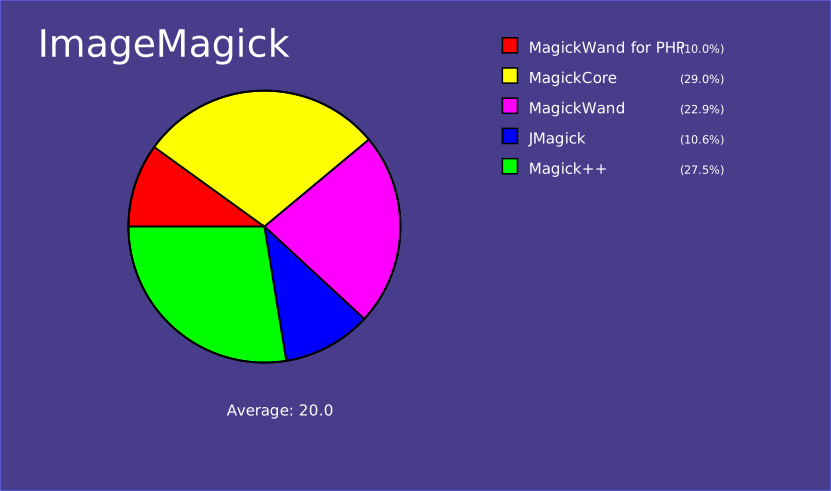
magick mvg:piechart.svg piechart.jpg
to produce the same pie chart we created with the MVG language.
Drawing is available from many of the ImageMagick program interfaces as well. ImageMagick converts the drawing API calls to MVG and renders it. Here is example code written in the MagickWand language:
(void) PushDrawingWand(draw_wand);
{
  const PointInfo points[6] =
  {
    { 180,504 },
    { 282.7,578.6 },
    { 243.5,699.4 },
    { 116.5,699.4 },
    { 77.26,578.6 },
    { 180,504 }
  };

  DrawSetStrokeAntialias(draw_wand,True);
  DrawSetStrokeWidth(draw_wand,9);
  DrawSetStrokeLineCap(draw_wand,RoundCap);
  DrawSetStrokeLineJoin(draw_wand,RoundJoin);
  (void) DrawSetStrokeDashArray(draw_wand,0,(const double *)NULL);
  (void) PixelSetColor(color,"#4000c2");
  DrawSetStrokeColor(draw_wand,color);
  DrawSetFillRule(draw_wand,EvenOddRule);
  (void) PixelSetColor(color,"#800000");
  DrawSetFillColor(draw_wand,color);
  DrawPolygon(draw_wand,6,points);
}
(void) PopDrawingWand(draw_wand);
MVG Overview
MVG ignores all white-space between commands. This allows multiple MVG commands per line. It is common convention to terminate each MVG command with a newline to make MVG easier to edit and read. This syntax description uses indentation in MVG sequences to aid with understanding. Indentation is supported but is not required.
Metafile wrapper syntax (to support stand-alone MVG files):
push graphic-context
  viewbox 0 0 width height
  [ any other MVG commands ]
pop graphic-context
Pattern syntax (saving and restoring context):
push pattern id x,y width,height
 push graphic-context
  [ drawing commands ]
 pop graphic-context
pop pattern
an example is (%s is a identifier string):
push defs
 push pattern %s 10,10 20,20
  push graphic-context
   fill red
   rectangle 5,5 15,15
  pop graphic-context
  push graphic-context
   fill green
   rectangle 10,10 20,20
  pop graphic-context
 pop pattern
pop defs
For image tiling use:
push pattern id x,y width,height
 image Copy ...
pop pattern
Note you can use the pattern for either the fill or stroke like:
stroke url(#%s)
or
fill url(#%s)
The clip path defines a clipping area, where only the contained area to be drawn upon. Areas outside of the clipping areare masked.
push defs
 push clip-path "myClipPath"
  push graphic-context
   rectangle 10,10 20,20
  pop graphic-context
 pop clip-path
pop defs
clip-path url(#myClipPath)
Drawing Primitives
Here is a complete description of the MVG drawing primitives:
| Primitive | Description | ||||||||||||||||||||||||||||||||||||||||||||||||||||||||||||||
|---|---|---|---|---|---|---|---|---|---|---|---|---|---|---|---|---|---|---|---|---|---|---|---|---|---|---|---|---|---|---|---|---|---|---|---|---|---|---|---|---|---|---|---|---|---|---|---|---|---|---|---|---|---|---|---|---|---|---|---|---|---|---|---|
| affine sx,rx,ry,sy,tx,ty | |||||||||||||||||||||||||||||||||||||||||||||||||||||||||||||||
| arc x0,y0 x1,y1 a0,a1 | |||||||||||||||||||||||||||||||||||||||||||||||||||||||||||||||
| bezier x0,y0 ... xn,yn | Bezier (spline) requires three or more x,y coordinates to define its shape. The first and last points are the knots (preserved coordinates) and any intermediate coordinates are the control points. If two control points are specified, the line between each end knot and its sequentially respective control point determines the tangent direction of the curve at that end. If one control point is specified, the lines from the end knots to the one control point determines the tangent directions of the curve at each end. If more than two control points are specified, then the additional control points act in combination to determine the intermediate shape of the curve. In order to draw complex curves, it is highly recommended either to use the Path primitive or to draw multiple four-point bezier segments with the start and end knots of each successive segment repeated. | ||||||||||||||||||||||||||||||||||||||||||||||||||||||||||||||
| border-color color | |||||||||||||||||||||||||||||||||||||||||||||||||||||||||||||||
| circle originx,originy perimeterx,perimetery | |||||||||||||||||||||||||||||||||||||||||||||||||||||||||||||||
| clip-path url(name) | |||||||||||||||||||||||||||||||||||||||||||||||||||||||||||||||
| clip-rule rule | Choose from these rule types:evenodd nonzero | ||||||||||||||||||||||||||||||||||||||||||||||||||||||||||||||
| clip-units units | Choose from these unit types:userSpace userSpaceOnUse objectBoundingBox | ||||||||||||||||||||||||||||||||||||||||||||||||||||||||||||||
| color x,y method | Choose from these method types:point replace floodfill filltoborder reset | ||||||||||||||||||||||||||||||||||||||||||||||||||||||||||||||
| compliance type | Choose from these compliance types: MVG or SVG | ||||||||||||||||||||||||||||||||||||||||||||||||||||||||||||||
| decorate type | Choose from these types of decorations:none line-through overline underline | ||||||||||||||||||||||||||||||||||||||||||||||||||||||||||||||
| ellipse centerx,centery radiusx,radiusy arcstart,arcstop | |||||||||||||||||||||||||||||||||||||||||||||||||||||||||||||||
| fill color | Choose from any of these colors. | ||||||||||||||||||||||||||||||||||||||||||||||||||||||||||||||
| fill-opacity opacity | The opacity ranges from 0.0 (fully transparent) to 1.0 (fully opaque) or as a percentage (e.g. 50%). | ||||||||||||||||||||||||||||||||||||||||||||||||||||||||||||||
| fill-rule rule | Choose from these rule types:evenodd nonzero | ||||||||||||||||||||||||||||||||||||||||||||||||||||||||||||||
| font name | |||||||||||||||||||||||||||||||||||||||||||||||||||||||||||||||
| font-family family | |||||||||||||||||||||||||||||||||||||||||||||||||||||||||||||||
| font-size point-size | |||||||||||||||||||||||||||||||||||||||||||||||||||||||||||||||
| font-stretch type | Choose from these stretch types:all normal ultra-condensed extra-condensed condensed semi-condensed semi-expanded expanded extra-expanded ultra-expanded | ||||||||||||||||||||||||||||||||||||||||||||||||||||||||||||||
| font-style style | Choose from these styles:all normal italic oblique | ||||||||||||||||||||||||||||||||||||||||||||||||||||||||||||||
| font-weight weight | Choose from these weights:all normal bold 100 200 300 400 500 600 700 800 900 | ||||||||||||||||||||||||||||||||||||||||||||||||||||||||||||||
| gradient-units units | Choose from these units:userSpace userSpaceOnUse objectBoundingBox | ||||||||||||||||||||||||||||||||||||||||||||||||||||||||||||||
| gravity type | Choose from these gravity types:NorthWest North NorthEast West Center East SouthWest South SouthEast | ||||||||||||||||||||||||||||||||||||||||||||||||||||||||||||||
| image compose x,y width,height 'filename' | Choose from these compose operations:
| ||||||||||||||||||||||||||||||||||||||||||||||||||||||||||||||
| interline-spacing pixels | |||||||||||||||||||||||||||||||||||||||||||||||||||||||||||||||
| interword-spacing pixels | |||||||||||||||||||||||||||||||||||||||||||||||||||||||||||||||
| kerning pixels | |||||||||||||||||||||||||||||||||||||||||||||||||||||||||||||||
| line x,y x1,y1 | |||||||||||||||||||||||||||||||||||||||||||||||||||||||||||||||
| matte x,y method | Choose from these methods:point replace floodfill filltoborder reset | ||||||||||||||||||||||||||||||||||||||||||||||||||||||||||||||
| offset offset | |||||||||||||||||||||||||||||||||||||||||||||||||||||||||||||||
| opacity opacity | Use percent (e.g. 50%). | ||||||||||||||||||||||||||||||||||||||||||||||||||||||||||||||
| path path | |||||||||||||||||||||||||||||||||||||||||||||||||||||||||||||||
| point x,y | |||||||||||||||||||||||||||||||||||||||||||||||||||||||||||||||
| polygon x,y x1,y1, ..., xn,yn | |||||||||||||||||||||||||||||||||||||||||||||||||||||||||||||||
| polyline x,y x1,y1, ..., xn,yn | |||||||||||||||||||||||||||||||||||||||||||||||||||||||||||||||
| pop clip-path | |||||||||||||||||||||||||||||||||||||||||||||||||||||||||||||||
| pop defs | |||||||||||||||||||||||||||||||||||||||||||||||||||||||||||||||
| pop gradient | |||||||||||||||||||||||||||||||||||||||||||||||||||||||||||||||
| pop graphic-context | |||||||||||||||||||||||||||||||||||||||||||||||||||||||||||||||
| pop pattern | |||||||||||||||||||||||||||||||||||||||||||||||||||||||||||||||
| push clip-path "name" | |||||||||||||||||||||||||||||||||||||||||||||||||||||||||||||||
| push defs | |||||||||||||||||||||||||||||||||||||||||||||||||||||||||||||||
| push gradient id linear x,y x1,y1 | |||||||||||||||||||||||||||||||||||||||||||||||||||||||||||||||
| push gradient id radial xc,cy xf,yf radius | |||||||||||||||||||||||||||||||||||||||||||||||||||||||||||||||
| push graphic-context { "id" } | the id is optional | ||||||||||||||||||||||||||||||||||||||||||||||||||||||||||||||
| push pattern id x,y width,height | |||||||||||||||||||||||||||||||||||||||||||||||||||||||||||||||
| rectangle x,y x1,y1 | |||||||||||||||||||||||||||||||||||||||||||||||||||||||||||||||
| rotate angle | |||||||||||||||||||||||||||||||||||||||||||||||||||||||||||||||
| roundrectangle x,y x1,y1 width,height | |||||||||||||||||||||||||||||||||||||||||||||||||||||||||||||||
| scale x,y | |||||||||||||||||||||||||||||||||||||||||||||||||||||||||||||||
| skewX angle | |||||||||||||||||||||||||||||||||||||||||||||||||||||||||||||||
| skewX angle | |||||||||||||||||||||||||||||||||||||||||||||||||||||||||||||||
| stop-color color offset | |||||||||||||||||||||||||||||||||||||||||||||||||||||||||||||||
| stroke color | |||||||||||||||||||||||||||||||||||||||||||||||||||||||||||||||
| stroke-antialias 0 • 1 | |||||||||||||||||||||||||||||||||||||||||||||||||||||||||||||||
| stroke-dasharray none • numeric-list | |||||||||||||||||||||||||||||||||||||||||||||||||||||||||||||||
| stroke-dashoffset offset | |||||||||||||||||||||||||||||||||||||||||||||||||||||||||||||||
| stroke-linecap type | Choose from these cap types:butt round square | ||||||||||||||||||||||||||||||||||||||||||||||||||||||||||||||
| stroke-linejoin type | Choose from these join types:bevel miter round | ||||||||||||||||||||||||||||||||||||||||||||||||||||||||||||||
| stroke-miterlimit limit | |||||||||||||||||||||||||||||||||||||||||||||||||||||||||||||||
| stroke-opacity opacity | The opacity ranges from 0.0 (fully transparent) to 1.0 (fully opaque) or as a percentage (e.g. 50%). | ||||||||||||||||||||||||||||||||||||||||||||||||||||||||||||||
| stroke-width width | |||||||||||||||||||||||||||||||||||||||||||||||||||||||||||||||
| text "text" | |||||||||||||||||||||||||||||||||||||||||||||||||||||||||||||||
| text-antialias 0 • 1 | |||||||||||||||||||||||||||||||||||||||||||||||||||||||||||||||
| text-undercolor color | |||||||||||||||||||||||||||||||||||||||||||||||||||||||||||||||
| translate x,y | |||||||||||||||||||||||||||||||||||||||||||||||||||||||||||||||
| use "url(#id)" | |||||||||||||||||||||||||||||||||||||||||||||||||||||||||||||||
| viewbox x,y x1,y1 |
Note, the primitives are case sensitive, e.g., use viewbox, not viewBox.
